> ## Documentation Index
> Fetch the complete documentation index at: https://training-docs.cerebras.ai/llms.txt
> Use this file to discover all available pages before exploring further.
# Fine-Tune Your First Model
> Follow this guide to fine-tune your first model on a Cerebras system.
## Overview
This tutorial teaches you about Cerebras essentials like data preprocessing and training scripts, config files, and checkpoint conversion tools. To understand these concepts, you’ll fine-tune [Meta’s Llama 3 8B](https://huggingface.co/meta-llama/Meta-Llama-3-8B) on a small dataset consisting of documents and their summaries.
In this quickstart guide, you will:
* Setup your environment
* Pre-process a small dataset
* Port a trained model from Hugging Face
* Fine-tune and evaluate a model
* Test your model on downstream tasks
* Port your model to Hugging Face
In this tutorial, you will train your model for a short while on a small dataset. A high quality model requires a longer training run, as well as a much larger dataset.
## Prerequisites
To begin this guide, you must have:
* Cerebras system access. If you don't have access, contact Cerebras Support.
* Completed [setup and installation](../getting-started/setup-and-installation).
## Workflow
First, save the working directory to an environment variable:
```Bash theme={null}
export MODELZOO_PARENT=$(pwd)
```
Then, create a dedicated folder to store assets (like data and model configs) and generated files (such as processed datasets, checkpoints, and logs):
```Bash theme={null}
mkdir finetuning_tutorial
```
Next, copy the sample configs into your folder. These include model configs, evaluation configs, and data configs.
```Bash theme={null}
cp modelzoo/src/cerebras/modelzoo/tutorials/finetuning/* finetuning_tutorial
```
We use `cp` here to copy configs specifically designed for this tutorial. For general use with Model Zoo models, we recommend using `cszoo config pull`. See the [CLI command reference](../model-zoo/cli-overview#config:pull) for details.
Before moving on, inspect the configuration files you just copied to confirm that the parameters are set as expected.
To view the model config, run:
```Bash theme={null}
cat pretraining_tutorial/model_config.yaml
```
You should see the following content in your terminal:
```yaml theme={null}
########################################
## Pre-Training Tutorial Model Config ##
########################################
trainer:
init:
model_dir: pretraining_tutorial/model
backend:
backend_type: CSX
cluster_config:
num_csx: 1
callbacks:
- ComputeNorm: {}
checkpoint:
steps: 18
logging:
log_steps: 1
loop:
eval_steps: 5
max_steps: 18
model:
attention_dropout_rate: 0.0
attention_module: multiquery_attention
attention_type: scaled_dot_product
dropout_rate: 0.0
embedding_dropout_rate: 0.0
embedding_layer_norm: false
extra_attention_params:
num_kv_groups: 8
filter_size: 14336
fp16_type: cbfloat16
hidden_size: 4096
initializer_range: 0.02
layer_norm_epsilon: 1.0e-05
loss_scaling: num_tokens
loss_weight: 1.0
max_position_embeddings: 8192
mixed_precision: true
nonlinearity: swiglu
norm_type: rmsnorm
num_heads: 32
num_hidden_layers: 32
pos_scaling_factor: 1.0
position_embedding_type: rotary
rope_theta: 500000.0
rotary_dim: 128
share_embedding_weights: false
use_bias_in_output: false
use_ffn_bias: false
use_ffn_bias_in_attention: false
use_projection_bias_in_attention: false
vocab_size: 128256
optimizer:
AdamW:
betas:
- 0.9
- 0.95
correct_bias: true
weight_decay: 0.01
precision:
enabled: true
fp16_type: cbfloat16
log_loss_scale: true
loss_scaling_factor: dynamic
max_gradient_norm: 1.0
schedulers:
- CosineDecayLR:
end_learning_rate: 1.0e-05
initial_learning_rate: 5.0e-05
total_iters: 18
seed: 1
fit:
train_dataloader:
batch_size: 8
data_dir: train_data
data_processor: GptHDF5MapDataProcessor
num_workers: 8
persistent_workers: true
prefetch_factor: 10
shuffle: true
shuffle_seed: 1337
val_dataloader: &id001
batch_size: 1
data_dir: valid_data
data_processor: GptHDF5MapDataProcessor
num_workers: 8
shuffle: false
validate:
val_dataloader: *id001
validate_all:
val_dataloaders: *id001
```
These parameters specify the full architecture of the Llama 3 8B model and help define a Trainer object for training, validation, and logging semantics.
If you are interested, learn more about model configs [here](../model-zoo/components/supported-config-parameters), or dive into how to set up flexible [training](../model-zoo/trainer-overview) and [evaluation](../model-zoo/core-workflows/downstream-validation-using-eleuther-eval-harness). You can also follow [end-to-end tutorials](../model-zoo/tutorials) for various use cases.
To view the evaluation config, run:
```Bash theme={null}
cat pretraining_tutorial/eeh_config.yaml
```
You should see the following content in your terminal:
```Bash theme={null}
##############################################################
## Pre-Training Tutorial Eleuther Evaluation Harness Config ##
##############################################################
trainer:
init:
backend:
backend_type: CSX
cluster_config:
num_csx: 1
model:
model_name: llama
attention_dropout_rate: 0.0
attention_module: multiquery_attention
attention_type: scaled_dot_product
dropout_rate: 0.0
embedding_dropout_rate: 0.0
embedding_layer_norm: false
extra_attention_params:
num_kv_groups: 8
filter_size: 14336
fp16_type: cbfloat16
hidden_size: 4096
initializer_range: 0.02
layer_norm_epsilon: 1.0e-05
loss_scaling: num_tokens
loss_weight: 1.0
max_position_embeddings: 8192
mixed_precision: true
nonlinearity: swiglu
norm_type: rmsnorm
num_heads: 32
num_hidden_layers: 32
pos_scaling_factor: 1.0
position_embedding_type: rotary
rope_theta: 500000.0
rotary_dim: 128
share_embedding_weights: false
use_bias_in_output: false
use_ffn_bias: false
use_ffn_bias_in_attention: false
use_projection_bias_in_attention: false
vocab_size: 128256
callbacks:
- EleutherEvalHarness:
eeh_args:
tasks: winogrande
num_fewshot: 0
keep_data_dir: false
batch_size: 4
shuffle: false
max_sequence_length: 8192
num_workers: 1
data_dir: pretraining_tutorial/eeh
eos_id: 128001
pretrained_model_name_or_path: meta-llama/Meta-Llama-3-8B-Instruct
flags:
csx.performance.micro_batch_size: null
```
This file lets you evaluate your model via the multiple choice (non-generative) eval harness task `winogrande` on a single CSX system.
If you are interested, you can learn more about validating models using the [Eleuther](../model-zoo/core-workflows/downstream-validation-using-eleuther-eval-harness) or [BigCode Evaluation Harness](../model-zoo/core-workflows/downstream-validation-using-bigcode-eval-harness) in our documentation.
To view the data config, run:
```Bash theme={null}
cat pretraining_tutorial/train_data_config.yaml
```
You should see the following content in your terminal:
```yaml theme={null}
#############################################
## Pre-Training Tutorial Train Data Config ##
#############################################
setup:
data:
type: "huggingface"
source: "karpathy/tiny_shakespeare"
split: "train"
mode: "pretraining"
output_dir: "pretraining_tutorial/train_data"
processes: 1
processing:
huggingface_tokenizer: "meta-llama/Meta-Llama-3-8B-Instruct"
write_in_batch: True
read_hook: "cerebras.modelzoo.data_preparation.data_preprocessing.hooks:text_read_hook"
read_hook_kwargs:
data_keys:
text_key: "text"
dataset:
use_ftfy: True
```
If you are interested, you can read more about the [various parameters](../model-zoo/components/data-preprocessing/input-data-configuration) and [pre-built utilities](../model-zoo/components/data-preprocessing/data-preprocessing) for preprocessing common data formats. You can also follow end-to-end tutorials for various use cases such as [instruction fine-tuning](../model-zoo/tutorials/instruction-fine-tuning-for-llms) and [extending context lengths using position interpolation](../model-zoo/tutorials/extend-context-length-using-position-interpolation).
Use your data configs to preprocess your “train” and “validation” datasets:
```Bash theme={null}
cszoo data_preprocess run --config finetuning_tutorial/train_data_config.yaml
cszoo data_preprocess run --config finetuning_tutorial/valid_data_config.yaml
```
You should then see your preprocessed data in `finetuning_tutorial/train_data/` and `finetuning_tutorial/valid_data/` (see the `output_dir` parameter in your data configs).
When using the Hugging Face CLI to download a dataset, you may encounter the following error: `KeyError: 'tags'`
This issue occurs due to an outdated version of the `huggingface_hub` package. To resolve it, update the package to version 0.26.1 by running:
`pip install --upgrade huggingface_hub==0.26.1`
An example of “train” looks as follows:
```Bash theme={null}
{
"document": "In Wales, councils are responsible for funding..",
"summary": "As Chancellor George Osborne announced...",
"id": "35821725"
}
```
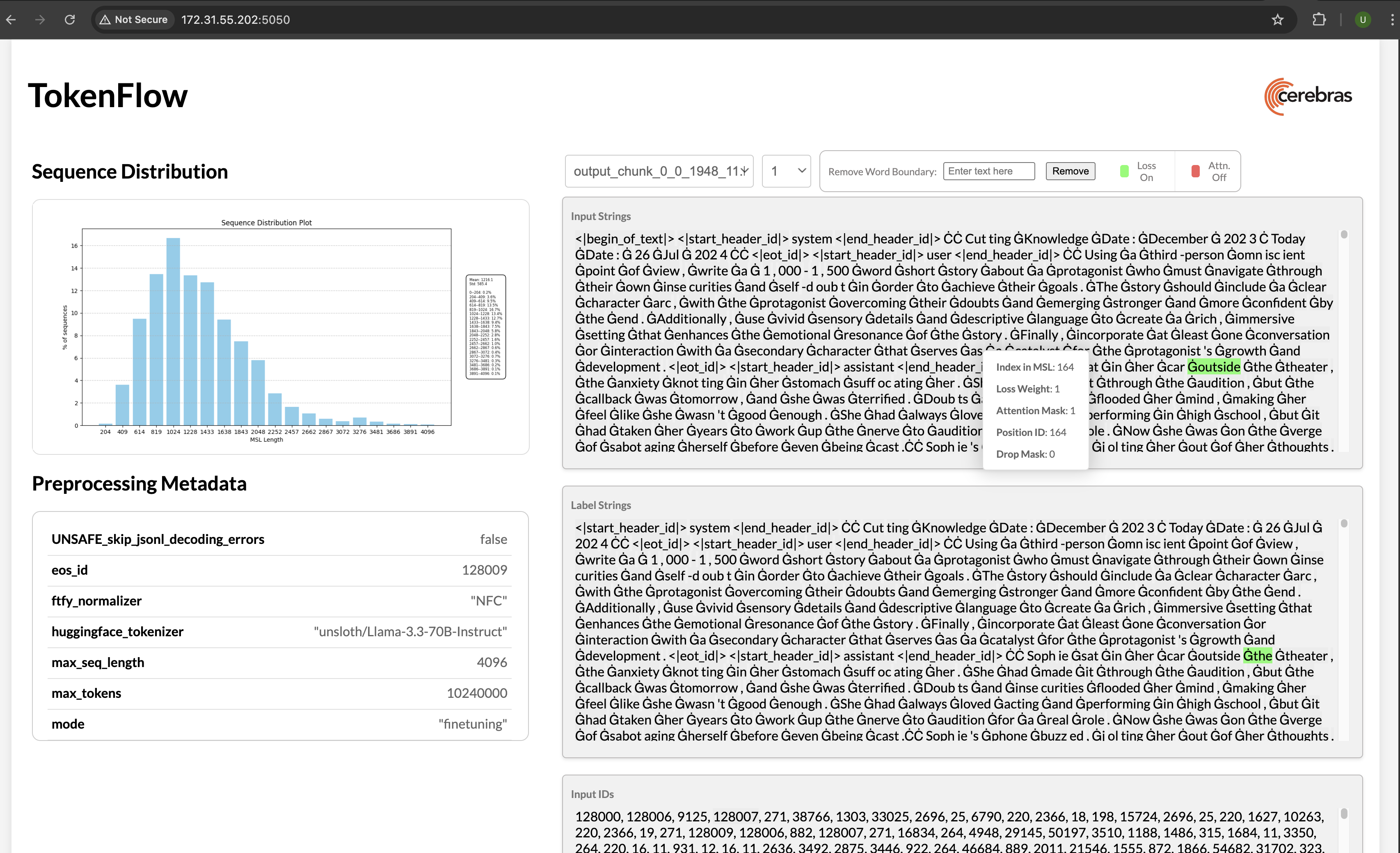
Once you’ve preprocessed your data, you can visualize the outcome:
```Bash theme={null}
python $MODELZOO_DATA/tokenflow/launch_tokenflow.py \
--output_dir finetuning_data/train_data
```
In your terminal, you will see a url like [`http://172.31.48.239:5000`.](http://172.31.48.239:5000.) Copy and paste this into your browser to launch [TokenFlow](../model-zoo/components/data-preprocessing/visualization-and-debugging), a tool for interactively visualizing whether loss and attention masks were applied correctly:
 Create a dedicated folder for the checkpoint and configuration files you’ll be downloading from Hugging Face.
```Bash theme={null}
mkdir finetuning_tutorial/from_hf
```
You can either fine-tune a model from a local pre-trained checkpoint or (as in this tutorial) from Hugging Face.
First, download checkpoint and configuration files from Hugging Face using the commands below. For the purposes of this tutorial, we’ll be using [McGill’s Llama 3-8B-Web](https://huggingface.co/McGill-NLP/Llama-3-8B-Web), a finetuned Meta-Llama-3-8B-Instruct model.
```Bash theme={null}
wget -P finetuning_tutorial/from_hf https://huggingface.co/McGill-NLP/Llama-3-8B-Web/resolve/main/pytorch_model.bin
wget -P finetuning_tutorial/from_hf https://huggingface.co/McGill-NLP/Llama-3-8B-Web/resolve/main/config.json
```
This will save two files in the `finetuning_tutorial/from_hf` directory:
* **config.json:** The model’s configuration file.
* **pytorch\_model.bin:** The model’s weights.
You can now convert the files to a format compatible with Model Zoo:
```Bash theme={null}
cszoo checkpoint convert --model llama --src-fmt hf --tgt-fmt cs-current --config finetuning_tutorial/from_hf/config.json finetuning_tutorial/from_hf/pytorch_model.bin
```
Your `finetuning_tutorial/from_hf` folder should now contain:
* `pytorch_model_to_cs-2.3.mdl`: The converted model checkpoint.
* `config_to_cs-2.3.yaml`: The converted configuration file.
While you will not need to do this in this quickstart since it has already been done for you, as a final step, you will usually point `ckpt_path` in your `finetuning_tutorial/model_config.yaml` to the location of this converted checkpoint.
Set `train_dataloader.data_dir` and `val_dataloader.data_dir` in your model config to the absolute paths of your preprocessed data:
```Bash theme={null}
sed -i "s|data_dir: train_data|data_dir: ${MODELZOO_PARENT}/finetuning_tutorial/train_data|" \
finetuning_tutorial/model_config.yaml
sed -i "s|data_dir: valid_data|data_dir: ${MODELZOO_PARENT}/finetuning_tutorial/valid_data|" \
finetuning_tutorial/model_config.yaml
```
Train your model by passing your updated model configs, the location of important directories, and python packages to a run script. Click [here](../fundamentals/launch-your-job) for more information.
```Bash theme={null}
cszoo fit finetuning_tutorial/model_config.yaml
```
You should then see something like this in your terminal:
```Bash theme={null}
Transferring weights to server: 100%|██| 1165/1165 [01:00<00:00, 19.33tensors/s]
INFO: Finished sending initial weights
INFO: | Train Device=CSX, Step=50, Loss=8.31250, Rate=69.37 samples/sec, GlobalRate=69.37 samples/sec
INFO: | Train Device=CSX, Step=100, Loss=7.25000, Rate=68.41 samples/sec, GlobalRate=68.56 samples/sec
...
```
Once training is complete, you will find several artifacts in the `finetuning_tutorial/model` folder (see the `model_dir` parameter in your model config). These include:
* Checkpoints
* TensorBoard event files
* Run logs
* A copy of the model config
#### Inspect Training Logs (optional)
Monitor your training during the run or visualize TensorBoard event files afterwards:
```Bash theme={null}
tensorboard --bind_all --logdir="finetuning_tutorial/model"
```
After training, you can test your model on downstream tasks:
```Bash theme={null}
cszoo lm_eval finetuning_tutorial/eeh_config.yaml --tasks=winogrande --checkpoint_path=finetuning_tutorial/model/checkpoint_18.mdl --mgmt_namespace
```
Your output logs should look something like:
```Bash theme={null}
...
2024-06-24 11:06:49,596 INFO: | EleutherAI Eval Device=CSX, GlobalStep=1, Batch=632, Rate=34.38 samples/sec, GlobalRate=34.34 samples/sec
2024-06-24 11:06:49,625 INFO: | EleutherAI Eval Device=CSX, GlobalStep=1, Batch=633, Rate=34.39 samples/sec, GlobalRate=34.35 samples/sec
2024-06-24 11:07:04,333 INFO: (None), gen_kwargs: ({'temperature': None, 'top_k': None, 'top_p': None, 'max_tokens': None}), limit: None, num_fewshot: None, batch_size: None
2024-06-24 11:07:04,696 INFO:
| Tasks |Version|Filter|n-shot|Metric|Value | |Stderr|
|----------|------:|------|-----:|------|-----:|---|-----:|
|winogrande| 1|none | 0|acc |0.7284|± |0.0141|
```
Once you train (and evaluate) your model, you can [port it](../model-zoo/migration/port-a-trained-and-fine-tuned-model-to-hugging-face) to Hugging Face to generate outputs:
```Bash theme={null}
cszoo checkpoint convert --model llama --src-fmt cs-auto --tgt-fmt hf --config finetuning_tutorial/model_config.yaml --output-dir finetuning_tutorial/to_hf finetuning_tutorial/model/checkpoint_0.mdl
```
This will create both Hugging Face config files and a converted checkpoint under `finetuning_tutorial/to_hf`.
You can now generate outputs using Hugging Face:
```Bash theme={null}
pip install 'transformers[torch]'
```
```Bash theme={null}
python
```
```Bash theme={null}
Python 3.8.16 (default, Mar 18 2024, 18:27:40)
[GCC 8.4.0] on linux
Type "help", "copyright", "credits" or "license" for more information.
>>> from transformers import AutoTokenizer, AutoModelForCausalLM, AutoConfig
>>> from transformers import pipeline
>>> tokenizer = AutoTokenizer.from_pretrained("meta-llama/Meta-Llama-3-8B-Instruct")
>>> config = AutoConfig.from_pretrained("finetuning_tutorial/to_hf/model_config_to_hf.json")
>>> model = AutoModelForCausalLM.from_pretrained(pretrained_model_name_or_path="finetuning_tutorial/to_hf/checkpoint_0_to_hf.bin", config = config)
>>> text = "Generative AI is "
>>> pipe = pipeline("text-generation", model=model, tokenizer=tokenizer)
>>> generated_text = pipe(text, max_length=50, do_sample=False, no_repeat_ngram_size=2, eos_token_id=pipeline.tokenizer.eos_token_id, pad_token_id=pipeline.tokenizer.eos_token_id)[0]
>>> print(generated_text['generated_text'])
>>> exit()
```
As a reminder, in this quickstart, you did not train your model for very long. A high quality model requires a longer training run, as well as a much larger dataset.
## Conclusion
Congratulations! In this tutorial, you followed an end-to-end workflow to fine-tune a model on a Cerebras system and learn about essential tools and scripts.
As part of this, your learned how to:
* Setup your environment
* Pre-process a small dataset
* Port a trained model from Hugging Face
* Fine-tune and evaluate a model
* Test your model on downstream tasks
* Port your model to Hugging Face
## What’s Next?
* Learn more about [data preprocessing](../model-zoo/components/data-preprocessing/data-preprocessing)
* Learn more about the [Cerebras Model Zoo](../model-zoo/model-zoo-overview) and the different models we support
Create a dedicated folder for the checkpoint and configuration files you’ll be downloading from Hugging Face.
```Bash theme={null}
mkdir finetuning_tutorial/from_hf
```
You can either fine-tune a model from a local pre-trained checkpoint or (as in this tutorial) from Hugging Face.
First, download checkpoint and configuration files from Hugging Face using the commands below. For the purposes of this tutorial, we’ll be using [McGill’s Llama 3-8B-Web](https://huggingface.co/McGill-NLP/Llama-3-8B-Web), a finetuned Meta-Llama-3-8B-Instruct model.
```Bash theme={null}
wget -P finetuning_tutorial/from_hf https://huggingface.co/McGill-NLP/Llama-3-8B-Web/resolve/main/pytorch_model.bin
wget -P finetuning_tutorial/from_hf https://huggingface.co/McGill-NLP/Llama-3-8B-Web/resolve/main/config.json
```
This will save two files in the `finetuning_tutorial/from_hf` directory:
* **config.json:** The model’s configuration file.
* **pytorch\_model.bin:** The model’s weights.
You can now convert the files to a format compatible with Model Zoo:
```Bash theme={null}
cszoo checkpoint convert --model llama --src-fmt hf --tgt-fmt cs-current --config finetuning_tutorial/from_hf/config.json finetuning_tutorial/from_hf/pytorch_model.bin
```
Your `finetuning_tutorial/from_hf` folder should now contain:
* `pytorch_model_to_cs-2.3.mdl`: The converted model checkpoint.
* `config_to_cs-2.3.yaml`: The converted configuration file.
While you will not need to do this in this quickstart since it has already been done for you, as a final step, you will usually point `ckpt_path` in your `finetuning_tutorial/model_config.yaml` to the location of this converted checkpoint.
Set `train_dataloader.data_dir` and `val_dataloader.data_dir` in your model config to the absolute paths of your preprocessed data:
```Bash theme={null}
sed -i "s|data_dir: train_data|data_dir: ${MODELZOO_PARENT}/finetuning_tutorial/train_data|" \
finetuning_tutorial/model_config.yaml
sed -i "s|data_dir: valid_data|data_dir: ${MODELZOO_PARENT}/finetuning_tutorial/valid_data|" \
finetuning_tutorial/model_config.yaml
```
Train your model by passing your updated model configs, the location of important directories, and python packages to a run script. Click [here](../fundamentals/launch-your-job) for more information.
```Bash theme={null}
cszoo fit finetuning_tutorial/model_config.yaml
```
You should then see something like this in your terminal:
```Bash theme={null}
Transferring weights to server: 100%|██| 1165/1165 [01:00<00:00, 19.33tensors/s]
INFO: Finished sending initial weights
INFO: | Train Device=CSX, Step=50, Loss=8.31250, Rate=69.37 samples/sec, GlobalRate=69.37 samples/sec
INFO: | Train Device=CSX, Step=100, Loss=7.25000, Rate=68.41 samples/sec, GlobalRate=68.56 samples/sec
...
```
Once training is complete, you will find several artifacts in the `finetuning_tutorial/model` folder (see the `model_dir` parameter in your model config). These include:
* Checkpoints
* TensorBoard event files
* Run logs
* A copy of the model config
#### Inspect Training Logs (optional)
Monitor your training during the run or visualize TensorBoard event files afterwards:
```Bash theme={null}
tensorboard --bind_all --logdir="finetuning_tutorial/model"
```
After training, you can test your model on downstream tasks:
```Bash theme={null}
cszoo lm_eval finetuning_tutorial/eeh_config.yaml --tasks=winogrande --checkpoint_path=finetuning_tutorial/model/checkpoint_18.mdl --mgmt_namespace
```
Your output logs should look something like:
```Bash theme={null}
...
2024-06-24 11:06:49,596 INFO: | EleutherAI Eval Device=CSX, GlobalStep=1, Batch=632, Rate=34.38 samples/sec, GlobalRate=34.34 samples/sec
2024-06-24 11:06:49,625 INFO: | EleutherAI Eval Device=CSX, GlobalStep=1, Batch=633, Rate=34.39 samples/sec, GlobalRate=34.35 samples/sec
2024-06-24 11:07:04,333 INFO: (None), gen_kwargs: ({'temperature': None, 'top_k': None, 'top_p': None, 'max_tokens': None}), limit: None, num_fewshot: None, batch_size: None
2024-06-24 11:07:04,696 INFO:
| Tasks |Version|Filter|n-shot|Metric|Value | |Stderr|
|----------|------:|------|-----:|------|-----:|---|-----:|
|winogrande| 1|none | 0|acc |0.7284|± |0.0141|
```
Once you train (and evaluate) your model, you can [port it](../model-zoo/migration/port-a-trained-and-fine-tuned-model-to-hugging-face) to Hugging Face to generate outputs:
```Bash theme={null}
cszoo checkpoint convert --model llama --src-fmt cs-auto --tgt-fmt hf --config finetuning_tutorial/model_config.yaml --output-dir finetuning_tutorial/to_hf finetuning_tutorial/model/checkpoint_0.mdl
```
This will create both Hugging Face config files and a converted checkpoint under `finetuning_tutorial/to_hf`.
You can now generate outputs using Hugging Face:
```Bash theme={null}
pip install 'transformers[torch]'
```
```Bash theme={null}
python
```
```Bash theme={null}
Python 3.8.16 (default, Mar 18 2024, 18:27:40)
[GCC 8.4.0] on linux
Type "help", "copyright", "credits" or "license" for more information.
>>> from transformers import AutoTokenizer, AutoModelForCausalLM, AutoConfig
>>> from transformers import pipeline
>>> tokenizer = AutoTokenizer.from_pretrained("meta-llama/Meta-Llama-3-8B-Instruct")
>>> config = AutoConfig.from_pretrained("finetuning_tutorial/to_hf/model_config_to_hf.json")
>>> model = AutoModelForCausalLM.from_pretrained(pretrained_model_name_or_path="finetuning_tutorial/to_hf/checkpoint_0_to_hf.bin", config = config)
>>> text = "Generative AI is "
>>> pipe = pipeline("text-generation", model=model, tokenizer=tokenizer)
>>> generated_text = pipe(text, max_length=50, do_sample=False, no_repeat_ngram_size=2, eos_token_id=pipeline.tokenizer.eos_token_id, pad_token_id=pipeline.tokenizer.eos_token_id)[0]
>>> print(generated_text['generated_text'])
>>> exit()
```
As a reminder, in this quickstart, you did not train your model for very long. A high quality model requires a longer training run, as well as a much larger dataset.
## Conclusion
Congratulations! In this tutorial, you followed an end-to-end workflow to fine-tune a model on a Cerebras system and learn about essential tools and scripts.
As part of this, your learned how to:
* Setup your environment
* Pre-process a small dataset
* Port a trained model from Hugging Face
* Fine-tune and evaluate a model
* Test your model on downstream tasks
* Port your model to Hugging Face
## What’s Next?
* Learn more about [data preprocessing](../model-zoo/components/data-preprocessing/data-preprocessing)
* Learn more about the [Cerebras Model Zoo](../model-zoo/model-zoo-overview) and the different models we support